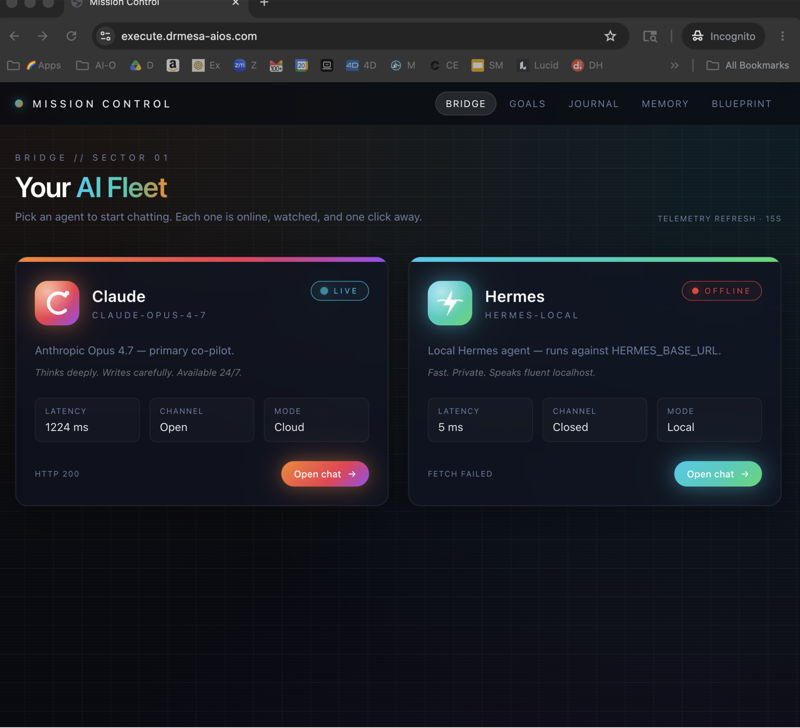
To set up hermes agent microsoft teams for a small business, you connect the Hermes agent to Teams as a bot your staff can message, and then, if you want, switch on a plugin that writes up each Teams meeting automatically.
This page walks an owner through both setups in plain English, then shows where it fits in a real firm, what your Microsoft account needs, and the risks to manage.
Every feature claim below comes from the official Hermes docs for the Teams bot and the Teams meeting pipeline.
If you'd like to talk it through for your own company first, book a free SEO strategy session with my team.
What You Actually Get, In Plain English
Hermes is an AI agent from Nous Research that runs on a computer or server you control.
Its gateway connects it to chat apps, and Microsoft Teams is one of them.
Once connected, a staff member can message the agent in Teams the way they'd message a colleague.
In a private chat it answers every message.
In a group chat or a channel it waits until somebody @mentions it, so it doesn't butt into every conversation.
The second piece is optional: a meeting pipeline that collects the transcript after a Teams meeting and posts a summary to a channel, a chat, Notion or Linear.
Think of it as one agent with two doors: a chat door your team walks through, and a meetings door Microsoft opens for it.
How To Connect Hermes To Teams, Step By Step In Plain English
Here is the whole bot setup without the jargon.
Whoever does it needs about an afternoon and access to the computer or server where Hermes runs.
- Install Microsoft's Teams tool. It's a small command-line program called the Teams CLI. Your helper installs it, signs in with your company Microsoft account and writes down their own user ID.
- Give Teams a way in. Teams has to reach your Hermes machine over the internet, so a tunnel (or, later, your own web address) opens one door for it.
- Create the bot. One command registers a bot called Hermes and hands back three codes: a client ID, a secret and a tenant ID. The secret appears once, so save it.
- Tell Hermes who may use it. The three codes go into the Hermes settings file, along with the user IDs of the staff allowed to talk to the bot.
- Restart Hermes. A quick health check confirms it's listening.
- Add the app to Teams. Open the install link the tool prints, and Hermes appears in Teams. Send it a private message to test.
The official Teams setup page has the exact commands for each step, and Hermes also offers a guided version: run hermes gateway setup and choose Microsoft Teams.
Once it answers in a private chat, add it to one channel and tag it with @ to ask for help there.
How To Add Meeting Summaries, Step By Step
This half is optional, and your Microsoft 365 admin does most of it.
- Register an app in Microsoft's admin centre and give it read access to meetings and transcripts.
- Limit it to named people with an access policy, so it can't read every meeting in the company.
- Switch on the Hermes meeting plugin with
hermes plugins enable teams_pipelineand add the app's codes to the settings file. - Pick where summaries land: a Teams channel, a chat, Notion or Linear.
- Subscribe to your meetings so Microsoft tells Hermes when a transcript is ready.
- Schedule the renewal job, because those subscriptions run out within three days.
Each of those steps is spelled out on the Teams Meetings page, and the admin side is in the Graph app guide.
Use Case 1: An Accounting Practice With Eight Staff
The partners run client calls on Teams, and the juniors spend time writing up what was agreed.
With the meeting pipeline on, Graph tells Hermes when a call's transcript is ready, and the pipeline writes a summary into the practice's Clients channel.
The docs say the pipeline looks for the transcript first and only falls back to the recording plus speech-to-text when no usable transcript exists.
The partners would then check the summary against their own memory of the call before anything goes to a client.
On the chat side, a junior can ask the agent in a private chat to draft a reminder email or tidy a spreadsheet export.
Use Case 2: A Building Contractor Running Site Teams
The office manager coordinates three crews through Teams channels.
The bot sits in the Operations channel and answers when someone tags it, for example to pull together a list of jobs mentioned that week.
Hermes can also post on its own schedule: set a home channel and its cron jobs deliver there, so a Monday-morning roundup can land in Operations without anyone asking.
Because Teams supports images in the Hermes platform table, a foreman can paste a photo of a delivery note into the chat.
Replies can stay in a channel thread, since threads are supported too, which keeps each job's questions in one place.
The crews never install anything new; they keep using the Teams app on their phones and simply tag the agent when they need it.
🔥 Want to see how other owners use agents day to day? Inside the AI Profit Boardroom owners learn from short video lessons, plug in the Agent OS we built, and bring questions to four weekly coaching calls with 3,400+ business owners. → Join the AI Profit Boardroom
Use Case 3: A Marketing Agency With Weekly Client Calls
Account managers hold weekly status calls on Teams with each client.
The pipeline can post each summary into the agency's internal channel for that account, or create a Linear issue if the agency tracks work there.
The bot side helps the team between calls: someone tags it in the account channel to turn last week's notes into a task list.
One rule here: summaries go to internal channels first, and a person decides what gets sent to the client.
What Your Microsoft Setup Needs
For the chat bot, the docs list surprisingly little.
You need Microsoft's Teams command-line tool, which registers the bot without the Azure portal, and a public web address Teams can reach.
For the meeting pipeline, the Graph app guide sets a higher bar.
Its licence bar: Teams Premium, or other Teams licences, as long as they create transcripts and recordings of your meetings.
Someone with tenant admin rights has to approve the app's permissions.
And the meetings you want summarised need transcription or recording to be on, because the pipeline can only summarise what Microsoft has saved.
Check your licences with whoever manages your Microsoft account before you plan around the meetings feature.
A Simple Rollout Plan For An Owner
- Week 1: get the chat bot running for two or three people only, in private chats.
- Week 2: add it to one channel and agree a rule that it only acts when tagged.
- Week 3: have your admin register the Graph app and limit it to the people whose meetings you want summarised.
- Week 4: switch on the pipeline for those users and schedule the renewal job before you rely on it.
Each stage is small enough to roll back if it doesn't suit the team.
Write down who is in the allowlist at each stage, so nobody is surprised when the bot ignores them.
The Risks To Manage Before You Switch It On
Who can talk to it. The Teams setup page says to always set an allowlist of approved users, because without one anyone who finds or installs the bot can use it.
What it can run. In Teams, Hermes has full tools including a terminal, so anything risky waits on an approval card first; its four buttons are Allow Once, Allow Session, Always Allow and Deny.
Keep the Always Allow button for things you'd happily approve every single time.
Which meetings it can read. The Graph permissions cover every meeting in the company by default.
The guide recommends an Application Access Policy so the app only reads meetings for named people, a control Microsoft also explains on Microsoft Learn.
Silent stops. Microsoft's meeting subscriptions expire within 72 hours, and the docs call a missed renewal the number one failure mode.
The operator guide suggests a renewal job every 12 hours.
📞 Not sure your Microsoft licences cover meeting summaries? Book a free SEO strategy session and my team will map what your setup can support today. → Claim your free strategy call
What It Won't Do For You
The official pipeline doesn't join a call, speak in it or take live questions.
It works after the meeting, from the transcript or the recording Microsoft saves.
A community plugin called MeetStream, listed in the Hermes plugin catalog, is described there as a visible bot that sits in Teams calls; MeetStream maintains it, not Nous Research.
The Teams chat bot also lacks voice messages, file attachments, reactions and streamed replies, according to the platform table in the messaging docs.
If your goal is a hosted agent that joins calls, read our Grok Bot Microsoft Teams guide for business owners.
Where Your Meeting Data Sits
Owners rightly ask where the transcripts go.
Hermes runs on a machine you choose, and the Teams Meetings page says the pipeline stores its job state and sink records locally on that install.
Summaries only leave that machine for the places you configure: a Teams target, Notion or Linear.
On the Microsoft side, your admin keeps control too.
Microsoft documents a tenant setting that turns off Graph access to transcripts, and once it's off, new transcript subscriptions fail.
Pair that with the access policy and you decide, user by user, whose meetings the agent may read.
Five Questions To Answer Before You Start
- Which two or three people will pilot the bot, and what are their AAD object IDs?
- Which single channel will the bot join first, and what will people tag it for?
- Does our Microsoft plan produce transcripts for the meetings we care about?
- Who has tenant admin rights to approve the Graph app and set the access policy?
- Who owns the renewal job and checks the failed-jobs list each week?
If you can't answer the last two yet, run the chat bot on its own for now.
It's useful without the meetings side, and nothing about it blocks adding the pipeline later.
Who Should Set It Up
The chat bot is a reasonable job for a tech-comfortable office manager with the docs open.
The pipeline is a job for your Microsoft 365 admin or an outside IT partner, because it touches tenant-wide permissions and PowerShell policies.
Either way, keep the credentials in the Hermes env file, lock that file down, and rotate the secrets on a schedule.
Whoever sets it up should also own the renewal job, so it never becomes nobody's problem.
My Verdict For Small Business Owners
Start with the chat bot in one channel, with a short allowlist.
Add meeting summaries only once your licences, your admin and your renewal schedule are sorted.
Treat every summary as a draft a person checks before it reaches a client.
If you want to learn the setup alongside other owners, the AI Profit Boardroom runs coaching calls every week, and you can book a free SEO strategy session for a plan built around your firm.
Also On Our Network
- 🌐 The nine-step operator build for a Hermes Teams bot and its meeting pipeline
- 🌐 The four ways to connect Hermes to Microsoft Teams, compared in one table
- 🌐 How to set up a Hermes Teams bot inside your Agent OS, step by step
- 🌐 A two-stage Hermes Microsoft Teams setup, with a short model pick at the end
- 🌐 The complete Hermes Agent Microsoft Teams guide on AI Profit Boardroom
FAQ: How To Set Up Hermes Agent Microsoft Teams For A Small Business
How does a small business connect Hermes to Teams?
Someone installs the Teams CLI, creates the bot, puts its three codes and a staff allowlist in the Hermes settings file, restarts Hermes and opens the install link in Teams.
Which Microsoft licences do meeting summaries need?
Per the Hermes Graph guide, your Microsoft 365 licences must create meeting transcripts and recordings (Teams Premium or other Teams licences), and a tenant admin must approve the app.
Can staff outside the allowlist use the bot?
No. Messages from people who aren't in TEAMS_ALLOWED_USERS are dropped, which is why the docs say to always set that list.
Will the agent sit in our client calls?
Not with the official pipeline. It summarises from the saved transcript or recording after the call. Live joining is offered by the community MeetStream plugin.
Where do the meeting summaries end up?
In a Teams channel or chat, or in Notion or Linear if you turn those sinks on.
What stops the agent running something harmful from a chat?
Risky commands stop at an approval card. Its buttons are Allow Once, Allow Session, Always Allow and Deny, and you can restrict who may press them with the approvers setting.
📺 Video notes + links to the tools 👉
🎥 Learn how I make these videos 👉
🆓 Get a FREE AI Course + Community + 1,000 AI Agents 👉
About Julian
I'm Julian Goldie, an SEO entrepreneur, author and founder of the AI Profit Boardroom, which has 3,400+ members.
I help business owners scale with AI agents, automation and SEO.
- I've built a 7-figure SEO and link building agency, Goldie Agency, with a team of 70+ SEO experts.
- I've grown a YouTube channel to 400,000+ subscribers.
- I wrote "Link Building Mastery".
- My Udemy courses have taught over 29,000 students.
→ Get my best AI training inside the AI Profit Boardroom
Pick one channel, one short allowlist and one meeting owner to start, then talk it over on a free SEO strategy session, or learn alongside other owners in the AI Profit Boardroom, as you roll out hermes agent microsoft teams across your business.